How to Screenshot a Dropdown or Hover State
Menus close the moment you reach for the capture key. Three reliable ways to freeze a transient interface state long enough to photograph it.
Last updated
This guide gets you to the point where you can capture a menu, tooltip or hover state that closes the instant you move the mouse or press a key. There are three methods below; the first works for most cases and is the one to reach for by default.
Before you start
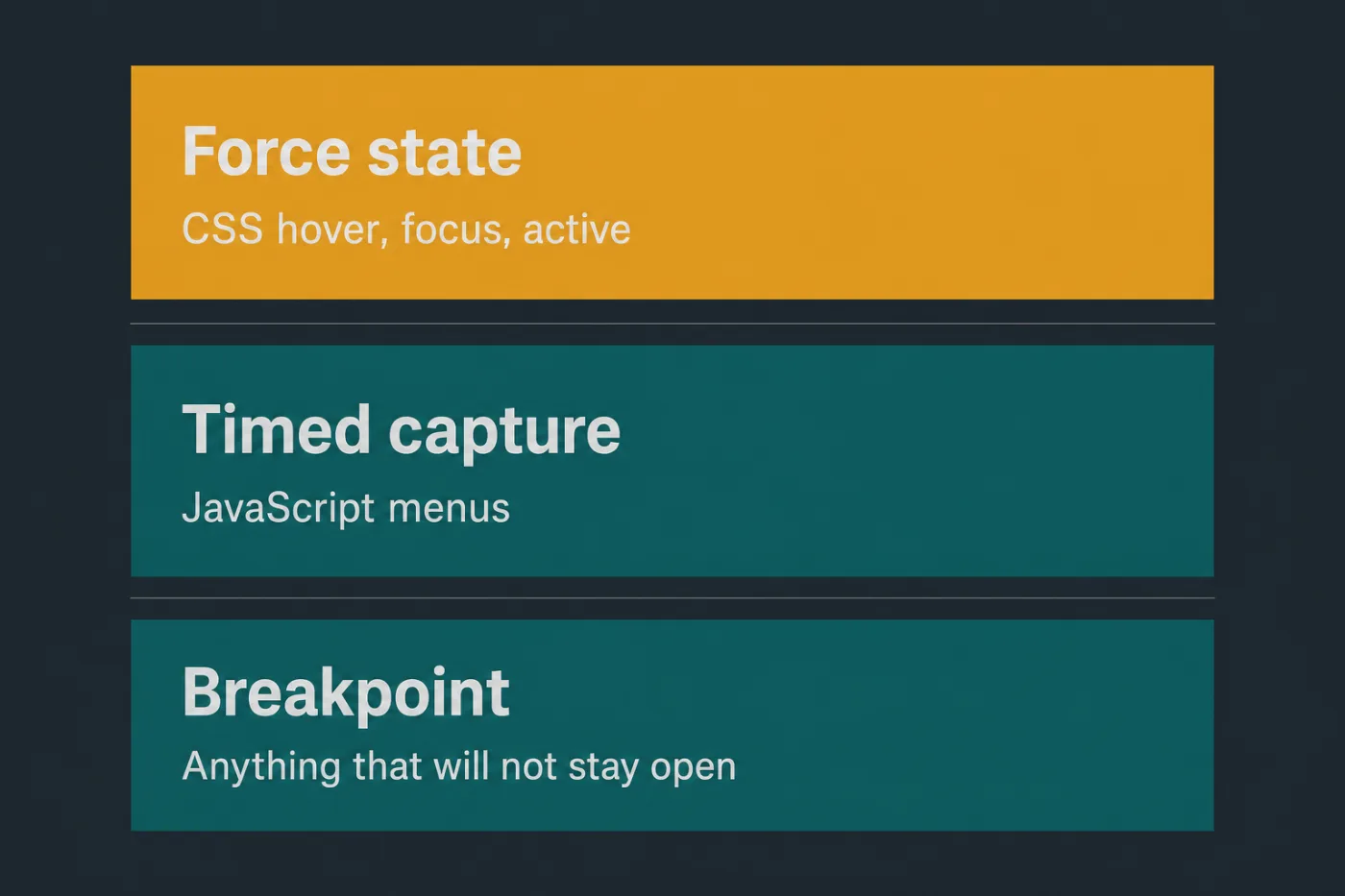
Work out which kind of transient state you are dealing with, because the fix differs. A CSS hover or focus state can be forced directly. A menu rendered in JavaScript on click needs freezing a different way. A tooltip on a timer needs a third approach.
If you are not sure, open devtools and watch the DOM as you trigger it: if the element appears in the tree, it is JavaScript-rendered; if the element exists all along and only its styles change, it is CSS.
Pick by what closes the element, not by which tool you prefer.
Steps
For CSS hover, focus or active states, force the state in devtools.
Open the Elements panel, right-click the element, and choose "Force state" - then tick:hover,:focusor:active. The state stays applied while you capture, and the mouse can go anywhere.For JavaScript menus, capture with a timed screenshot.
Most OS capture tools support a delay. On macOS,Cmd+Shift+5offers a five- or ten-second timer. Start the timer, open the menu, wait. The capture fires with the menu open and your mouse wherever you like.For anything that will not stay open, freeze execution with a breakpoint.
In devtools, open Sources and set an event listener breakpoint onmouseoutorblur, or pressF8while the state is visible. The page freezes mid-render with the element on screen. The rendered page is still capturable while paused.Alternatively, delete the closing handler.
In the Elements panel, find the element with the click-outside or blur handler and remove it from the Event Listeners pane. The menu then stays open indefinitely.Check what the forced state actually rendered.
Forcing:hoverapplies the hover styles but does not run any JavaScript that normally fires on hover. If the real hover state also loads content, the forced version will be missing it.Include enough context for the reader to reproduce it.
A cropped image of an open menu with no visible trigger leaves the reader unable to work out how to get there. Keep the element they need to hover or click in frame.
Common mistakes
Capturing with the cursor in shot for a hover state. It is tempting - the cursor explains why the menu is open. It is also the one image in your set with a pointer in it, and cursor rendering differs by OS. Explain the trigger in the step text instead.
Forcing :hover on the wrong element. Hover styles frequently live on a parent. If nothing changes, walk up the tree and force the state on the container.
Freezing at a breakpoint mid-animation. Menus that fade or slide in will freeze half-transparent or half-positioned. Wait for the animation to finish before pausing.
Forgetting the state is still forced. A forced :hover persists until you untick it, so the next three screenshots quietly have a highlighted button in them.
Screenshotting a native browser control. Native <select> dropdowns render outside the page and cannot be captured by devtools or forced. Those need an OS-level timed capture.
When this stops scaling
Every method here is a manual intervention in a live browser, and the fiddly ones - breakpoints, deleting listeners - take several minutes per image and are not repeatable by anyone who has not done them before.
That cost lands disproportionately, because transient states are exactly what step-by-step documentation is full of. "Click the three-dot menu and choose Settings" wants a picture of the open menu, and open menus are the hardest thing in the interface to photograph.
The result, in most help centres, is that these steps have no image at all - not a decision anyone made, just the path of least resistance. The gap is worst precisely where readers are most likely to get lost.
Rendering documentation images from the interface's code sidesteps the problem: a menu in its open state is a state the renderer can produce directly, with no timing, no breakpoints and no stray cursor. SupportPages builds images that way from your repository. If the steps in your documentation that most need a picture are the ones that do not have one, that is the reason.